

Why Run Local AI on Windows 10 and 11?
Most commercial AI tools route your sensitive personal data, corporate balance sheets, and proprietary source code to centralized data centers. For legal consultants, healthcare networks, financial advisors, and privacy-conscious enterprises across Qatar and the GCC, cloud-dependent AI introduces compliance vulnerabilities under regional data sovereignty regulations (including Qatar Law No. 13 of 2016 and Saudi PDPL).
Running AI locally on your Windows PC solves these concerns:
- Zero Data Egress: Your prompts, confidential files, and conversation history never leave your local NVMe or SSD storage.
- True Offline Availability: Your AI operates seamlessly on aeroplanes, remote worksites, offshore platforms, or during ISP outages.
- No Ongoing Subscriptions: Eliminate recurring per-seat monthly subscription charges.
- Direct Operating System Control: Local agents can safely read local directories, organize spreadsheets, and control browser sessions within sandboxed permissions.
Comparing the Three Ways to Run Local AI on Windows
If you want to run AI locally on Windows today, three primary pathways exist:
| Feature / Criteria | Option 1: DIY CLI (Ollama + Open WebUI) | Option 2: Offline AI USB (e.g. PortableMind) | Option 3: NavigatorAI 1.0.4 (Microsoft Store) |
|---|---|---|---|
| Installation Method | Manual terminal downloads + service setup | Plug in USB drive, run .bat script |
One-click certified install from Microsoft Store |
| SmartScreen & Defender | Unsigned packages require bypassing warnings | Requires clicking "Run anyway" & whitelisting drive | Zero security warnings; authentic signed MSIX package |
| Hardware Overhead | Demands 16GB RAM + dedicated Nvidia GPU for good speed | Needs USB 3.x port plugged in continuously | Optimized Slow Mode runs smoothly on 8GB RAM / Intel Core i3 |
| Interface | Terminal CLI or detached Docker container | Web-based localhost browser dashboard | Native, polished desktop interface with dark/light themes |
| Document Tutoring & Study | Requires complex third-party RAG pipelines | Basic vector lookup | Native interactive Study Mode with document quizzes |
| Presentations & Exports | Raw markdown text only | Raw text and chat export | Built-in bilingual PowerPoint (.pptx) & PDF generator |
| Pricing | Open source (manual configuration effort) | $69 to $99 per USB flash drive | Free to get started on Microsoft Store |
What Shipped in NavigatorAI Version 1.0.4
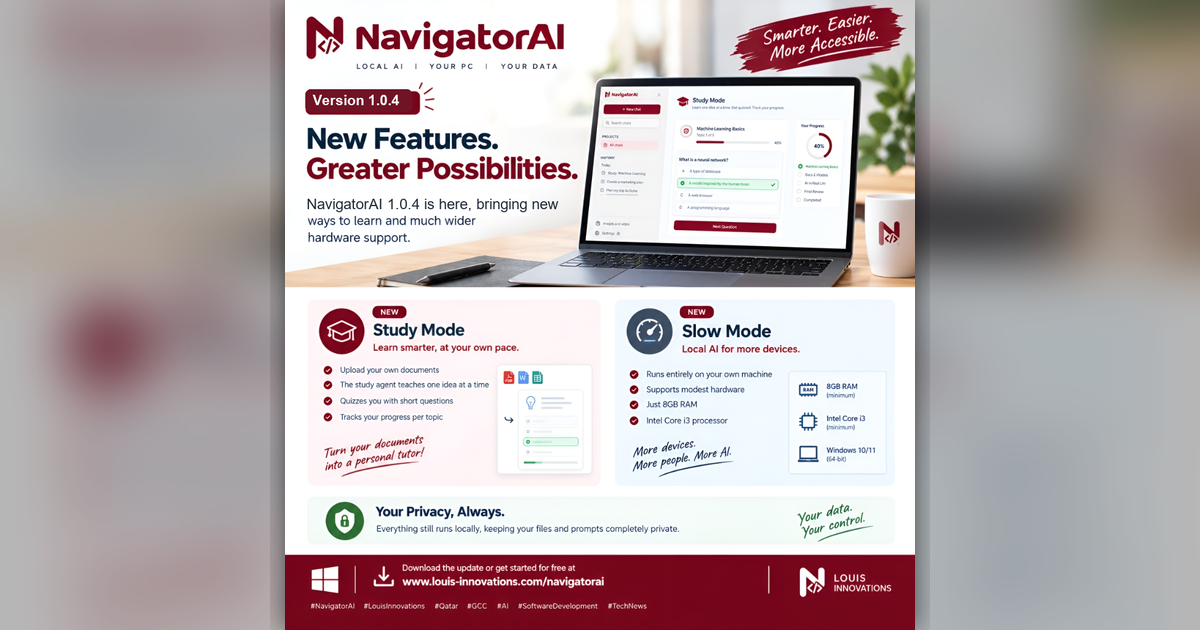
Version 1.0.4 delivers major performance breakthroughs and end-user capabilities designed specifically for mainstream Windows laptops and enterprise desktop environments:
1. New "Study Mode": Turn Your Documents into an Interactive Tutor
Instead of merely querying documents, Study Mode turns NavigatorAI into a personal learning coach:
- Direct Document Upload: Ingest PDFs, Word documents (.docx), spreadsheets (.xlsx), and markdown notes.
- Micro-Concept Breakdown: The study agent organizes complex source texts into bite-sized concept milestones.
- Active Recall Quizzing: Tests your understanding with targeted questions and tracks mastery percentages across each topic.
- 100% Private Knowledge: Perfect for university students, medical practitioners, and legal teams mastering case documents without uploading sensitive materials to external servers.
2. New "Slow Mode": High Performance for Standard Laptops (8GB RAM & Core i3)
In earlier eras of local machine learning, running AI locally required an expensive workstation with an Nvidia RTX 4090 GPU. NavigatorAI 1.0.4 democratizes on-device intelligence:
- Low-Footprint Runtime: Operates on standard hardware with as little as 8GB RAM and an Intel Core i3 processor.
- Dynamic Context Scaling: Automatically adjusts memory boundaries and allocates inference micro-batches (
--batch-size 512,--ubatch-size 128) to eliminate RAM thrashing. - Vulkan & AVX2 Acceleration: Maximizes CPU instruction sets and integrated graphics for responsive text generation.
3. Automated Slide Presentation Generator (Presenter)
Transform meeting summaries, research briefs, or project proposals into formatted slide presentations:
- Bilingual Arabic & English Typography: Native support for right-to-left layout and elegant GCC typography.
- PowerPoint (.pptx) & PDF Export: Open and edit your decks directly in Microsoft 365, PowerPoint, or ForeThought.
4. Sandboxed Kernel Architecture
- Core language model weights execute in an isolated process space.
- Filesystem access and external browser automation require explicit permission checks, protecting your operating system against rogue tool executions.
Step-by-Step: Setting Up Local AI on Windows 10 and 11
Step 1: Install NavigatorAI via Microsoft Store
- Open the NavigatorAI Microsoft Store Page.
- Click Get or Install.
- Windows Store verifies the digital signature from Abtikarat Louis Trading and Services WLL and completes the background installation without triggering SmartScreen warnings.
Alternatively, open the Windows Run box (Win + R) and paste:
ms-windows-store://pdp/?ProductId=9N9ZZWDK4DXL
Step 2: Select Your Preferred Model Profile
When you launch NavigatorAI for the first time, select the profile matching your PC:
- Standard Profile (16GB+ RAM / Dedicated GPU): Full reasoning speed with multi-modal vision and autonomous browser agents.
- Slow Mode (8GB RAM / Core i3): Lightweight quantized model footprint tuned for everyday laptops and business ultrabooks.
Step 3: Add Your Local Files
Drag and drop your project folders or PDF manuals into the sidebar. NavigatorAI indexes them locally using embedded vector SQLite storage (sqlite-vec). You can now summarize, cross-reference, and query your knowledge base completely offline.
Hardware Requirements for Windows Local AI
| Component | Minimum Specification (Slow Mode) | Recommended Specification (Power User) |
|---|---|---|
| Operating System | Windows 10 (Build 19041+) or Windows 11 (64-bit) | Windows 11 64-bit |
| Processor | Intel Core i3 / AMD Ryzen 3 (AVX2 support) | Intel Core i7 / AMD Ryzen 7 or Snapdragon X Elite |
| Memory (RAM) | 8 GB RAM | 16 GB to 32 GB RAM |
| Graphics | Integrated Intel Iris Xe / AMD Radeon | Nvidia GeForce RTX 3060+ (CUDA) or Vulkan |
| Storage | 2 GB free SSD space | 10 GB free NVMe SSD space |
Frequently Asked Questions
Is NavigatorAI completely offline?
Yes. NavigatorAI downloads open-weight models during initial setup or imports pre-downloaded weights. All prompt processing, vector search, document indexing, and presentation generation happen entirely on your machine. You can disconnect Wi-Fi and pull your network cable; the app remains fully functional.
How does NavigatorAI handle Windows Defender and SmartScreen?
Unlike raw batch scripts, loose .exe files, or USB drive launchers, NavigatorAI is packaged as an official MSIX application digitally signed by Abtikarat Louis Trading and Services WLL and distributed through the Microsoft Store. It passes all Microsoft security certifications and installs cleanly without SmartScreen bypasses.
Can I upgrade my models later?
Yes. NavigatorAI includes an in-app Model Manager that allows you to download or swap modern Small Language Models as new architectural improvements are released.
Get Started with Local AI on Windows Today
Ready to experience private, on-device artificial intelligence without subscriptions or cloud tracking?
- Download NavigatorAI: Get it on the Microsoft Store
- Explore Enterprise Deployments: Learn more about custom business integrations at Louis Innovations NavigatorAI Platform